Remove the sparkle watermark from AI images
Drop in a PNG, JPG or WebP. The corner logo is found, fitted to your image and reversed in seconds, with no blur and no upload.
- No upload
- Same resolution & frame rate
- Audio untouched
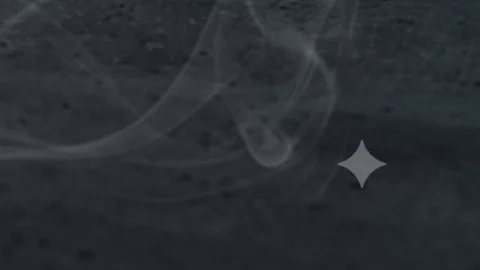 OriginalLogo removed
Real output, unedited. Drag the divider, or zoom in on the logo.
Fitted to your image
A photo has only one frame, so there is nothing to learn the logo from over time. Instead, ClearFrame starts from the known shape of the sparkle and fits its exact position, size, sharpness and strength to your image, then reverses it on each colour channel.
No quality loss
Your image keeps its exact dimensions. PNGs are saved losslessly, JPEGs at 95% quality, and WebP images come back as PNG. Only the pixels inside the logo change.
One image or a hundred
Drop in as many images as you like, together with videos if you have them, and download everything as one ZIP when it is done.
Three steps
- 1
Drop in your files
Videos or photos, one or fifty. Nothing is uploaded: your browser does the work.
- 2
The logo is found
The sparkle or Veo mark is located to the pixel, and its exact opacity is measured in your file.
- 3
Download clean files
Same resolution, frame rate and audio. One by one, or everything as a single ZIP.
Questions
Which watermarks can it remove?
The four-pointed sparkle that Google Gemini and Veo put in the corner of generated videos and images, and the “Veo” text logo. It finds them on its own.
It also handles other steady, semi-transparent corner logos: drag a box around one on the preview and ClearFrame learns that logo from the video itself.
Is anything left behind?
The sparkle is see-through, so the real picture is still in every frame, just blended with white. ClearFrame measures the logo’s exact shape and opacity in your file, reverses that blend in every frame, and then cleans the compression noise along its edge. On most videos nothing is left to see, even zoomed in.
Where a logo is fully opaque there is nothing underneath to recover, so those pixels are filled in from their surroundings.
Are my files uploaded anywhere?
No. Everything runs in your browser on your own device. Your videos and photos never reach our servers, so they stay private and you don’t wait for uploads.
Which files and browsers work?
Videos: MP4, MOV, WebM and MKV, in any codec your browser can decode (H.264, HEVC, VP9, AV1). Results are saved as MP4. Photos: PNG, JPG and WebP.
A recent Chrome or Edge on a computer works best. Recent Safari and Firefox handle most files. Phones are fine for photos and short clips.
Am I allowed to remove the watermark?
Only use ClearFrame on content you created or have the right to edit, and follow the terms of the service that generated it.
Removing the visible logo doesn’t change where the content came from. AI media also carries invisible watermarks such as Google’s SynthID, which ClearFrame does not remove, and many platforms and laws require AI-generated content to be labelled. Please keep doing that. See our Terms.
Read next
- Blur, crop or restore? Three ways to remove a watermark, comparedWhy blurred and cropped watermarks look bad, why AI inpainting flickers in video, and how restoring the pixels under a see-through logo works.
- Visible watermark vs SynthID: what removing the logo does, and doesn’t doThe visible sparkle and Google’s invisible SynthID watermark are different things. Here is what changes when you remove the logo and what stays.
- How to remove watermarks from many videos at onceUse batch mode to clean a whole folder of AI videos and photos in one go, then download everything as a single ZIP.
Also: Gemini watermark remover for videos and photos · Veo watermark remover: clean AI videos frame by frame